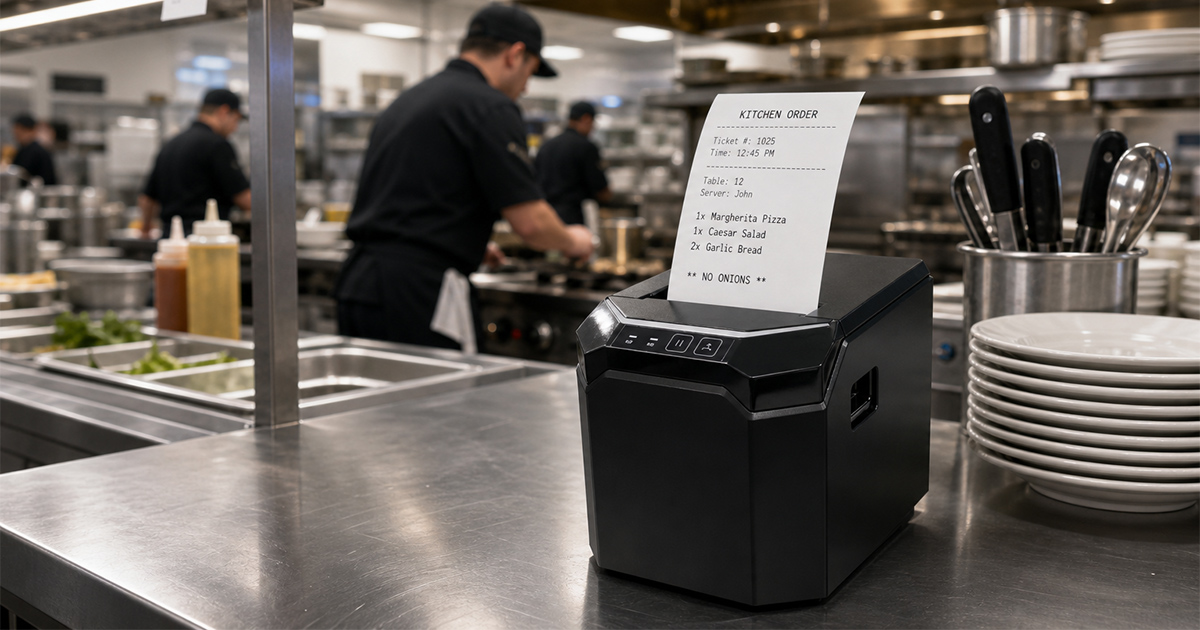
A kitchen printer station routes orders from the front counter to the preparation area without relying on staff to carry handwritten tickets. For a small or mid-size restaurant, the station is usually a combination of a receipt printer at the point of sale and one or more order printers in the kitchen. This article explains how to plan the layout, choose the printers, and connect them to a POS terminal so orders print at the right place.
In a manual workflow, servers write orders by hand and walk them to the kitchen. This works at very low volume but slows down during busy periods and introduces transcription errors. A kitchen printer station removes the walk and the rewrite: the order entered at the POS is sent directly to a printer in the preparation area.
The main operational benefits are shorter ticket delivery time, fewer lost or misread orders, and a clear record of what was sent to the kitchen. For multi-station setups, the same order can be split so that the grill, the fry station, and the beverage area each receive only the lines they need.
Different stations have different requirements. The two printer types most restaurants use are thermal receipt printers and thermal label printers. Both connect to the same POS software but serve different purposes.
At the counter or checkout, a thermal receipt printer issues the customer receipt. Speed and paper handling matter more than ruggedness here because the environment is dry and low-heat. A compact 80 mm or 58 mm thermal printer is typical.
The kitchen printer produces the ticket that cooks read. Because the kitchen is hot and humid, the printer should tolerate heat and steam and should not rely on ink that smears. Direct thermal printing is common for order tickets because the paper is cheap and the device has few moving parts. Some operators prefer a label printer here so the ticket can be peeled and stuck to a prep container or passed along the line.
A thermal label printer supports date labels, allergen tags, and delivery bag labels. These labels help with stock rotation and order identification, particularly for takeout and delivery where the bag must be matched to the right customer.
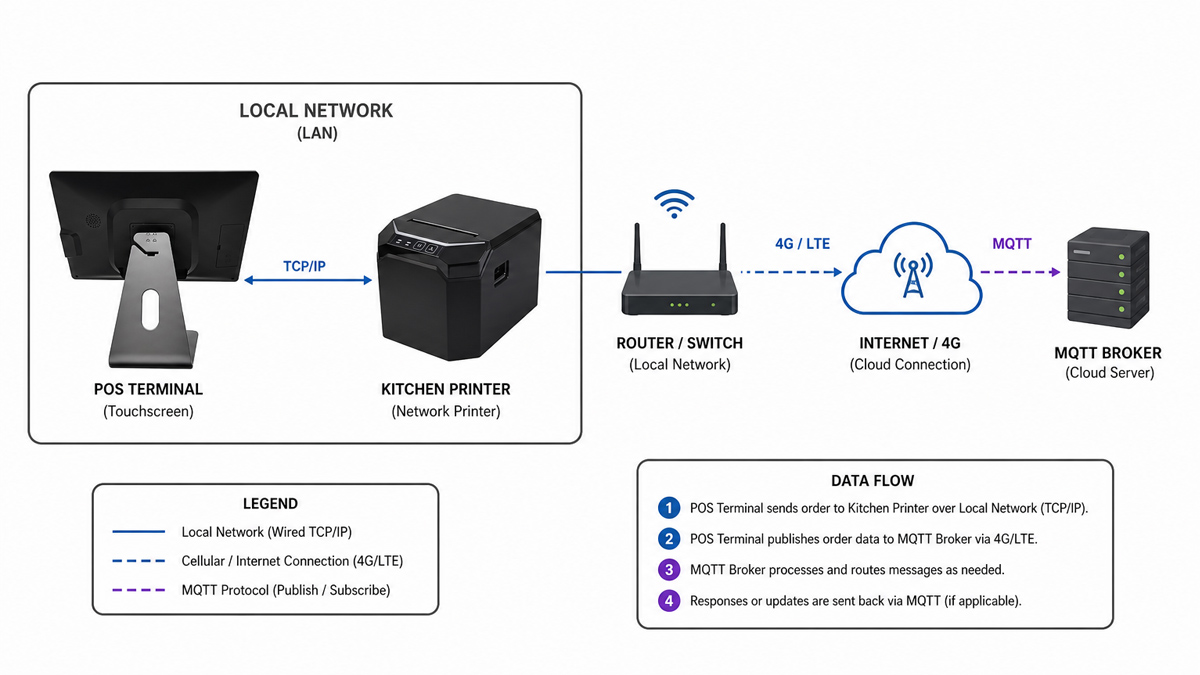
Printers connect to the POS in several common ways: USB for a fixed single device, Ethernet for shared printers on a local network, Bluetooth or Wi-Fi for mobile or tablet-based POS, and cellular or cloud-based links for sites that need to operate without a local network. For a kitchen station, Ethernet is the most stable choice because it does not depend on a wireless signal reaching the back of the house. USB works for a single printer attached to one terminal. Wireless is useful when the POS runs on a tablet that moves between stations.
Plan the network before installation. Assign a fixed IP address to each networked printer so the POS software can find it reliably. Keep the kitchen printers on the same subnet as the POS server or terminal to avoid routing delays.
Some printers and POS terminals include a built-in 4G module. With a cellular data connection, the device reaches a cloud-based POS or printer-management platform without relying on the local router or Wi-Fi. This suits sites with an unstable wired network, temporary or pop-up locations, and multi-site operations where printers at different locations report to one central system. A data plan is required, and the device must support the carrier bands used at the site.
MQTT is a lightweight messaging protocol used in IoT systems. In a cloud MQTT setup, the POS or a central server delivers print jobs to kitchen printers through an internet broker instead of a local network. This lets orders reach the kitchen printer from outside the building — for example from an online ordering platform or a headquarters server — without a VPN or on-site server. The printer and the sending system must both support MQTT and connect to the same broker with valid credentials.
The M55 POS Android terminal is a 15.6" Full-HD all-in-one Android POS built for the front counter and order routing. It runs Android 13 on a Qualcomm octa-core processor with 4GB RAM + 64GB storage, dual-band Wi-Fi 5, Bluetooth 5.0 and 4G LTE, so it stays connected to your cloud or local POS whether the station is fixed or moved. Its RJ45 Ethernet and five USB ports drive kitchen printers, cash drawers and scanners without extra adapters.
Use it as the order source that maps each ticket type to the right kitchen printer — drinks to the bar, food to the line — set once in the POS configuration.
View M55 Android POS Terminal Specifications →The X3C 80mm thermal receipt printer is a durable kitchen order printer with a built-in auto cutter, printing at up to 203mm/s across the full 80mm width. It offers four interface options — USB+LAN, USB+Serial+LAN, USB+LAN+Bluetooth and USB+LAN+WiFi — so it drops into any kitchen network, including the 4G cloud and Cloud MQTT setups described above. A 150KM print-head life and smart reprint after paper reload keep tickets flowing through the rush.
Pair it with the M55 terminal (or any ESC/POS-compatible POS) for a complete counter-to-kitchen ticket flow.
View X3C Thermal Receipt Printer Specifications →The cash register and POS terminal are the source of the order data. Most POS applications let you map printer destinations to order types or menu categories. For example, drinks can route to a bar printer while food routes to the kitchen printer. Set these routes in the POS configuration rather than asking staff to choose a printer for every order.
Confirm that the printer models you select are supported by your POS software and that the required drivers or command sets (such as ESC/POS) are available for your operating system. Unsupported models force manual workarounds that undo the benefit of the station.
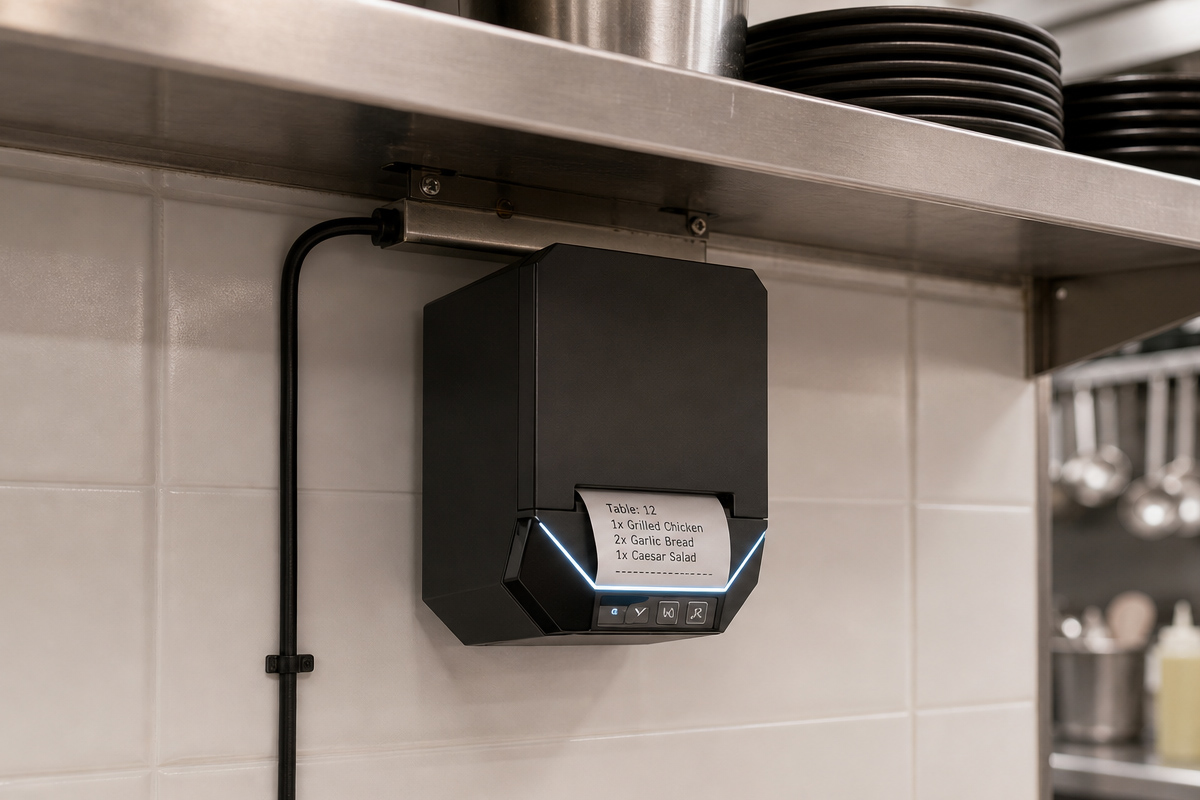
Place the kitchen printer where the ticket is easy to see but protected from direct splashes and excessive heat. Mounting the printer on a wall bracket or under a shelf keeps the counter clear. Route power and network cables through conduit or cable trays so they are not exposed to foot traffic or cleaning.
Keep a small stock of paper and a spare power adapter on site. A printer that runs out of paper during a rush stops the whole ticket flow, so a visible low-paper indicator and a quick reload process matter more than extra features.
Thermal printheads accumulate residue from paper dust. A weekly clean with a soft cloth and isopropyl alcohol keeps print quality consistent. Check the paper path for jams daily and verify that each printer still receives test tickets after any network change.
For label printers, confirm that the sensor reads the gap or mark correctly after loading a new roll. A misaligned sensor causes skipped or miscut labels.
A kitchen printer station is a small hardware layout with a large effect on order accuracy. Start by mapping where each order type should print, choose thermal printers suited to each environment, connect them over a stable network, and configure the routing in your POS. With the printers placed and maintained, the kitchen receives readable tickets without manual handoff.
A kitchen display screen and a kitchen printer do different jobs. A printed ticket works without power to a separate screen, is easy to read across a noisy line, and gives a physical record if the network drops. Many restaurants use both. A printer is a low-cost backup even when a screen is present.
Yes. Printers with built-in 4G connect through cellular data, and Cloud MQTT setups receive print jobs over the internet without a VPN or on-site server. These options suit sites without a stable wired network or multiple locations that report to one system.
Most kitchen order printers use direct thermal printing on 80mm receipt paper. It needs no ink or ribbon and is simple to maintain. Thermal paper should be kept dry and away from heat and direct sun to avoid fading.
Use a POS or print spooler that caches orders locally and retries printing when the connection returns. Assign a fixed IP to networked printers and keep them on the same subnet as the POS. A printed ticket also acts as a physical backup if the screen or network fails.