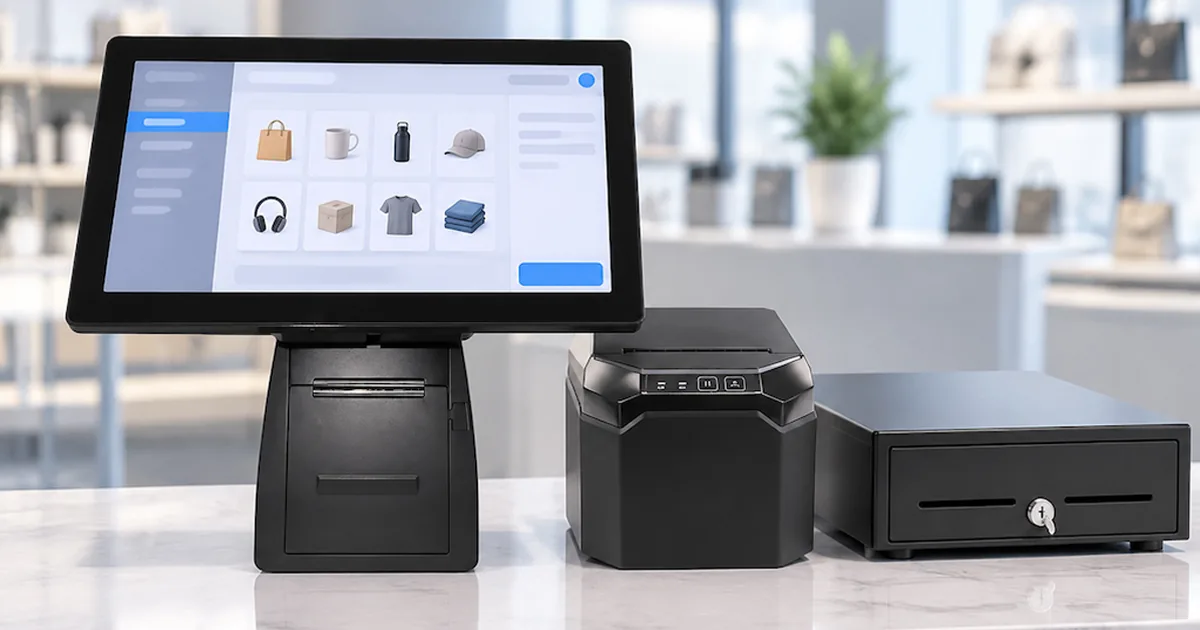
Choosing between an Android and a Windows POS terminal is one of the first POS hardware decisions in a retail or hospitality rollout. Both platforms can run a modern checkout, but they suit different POS software stacks and different peripheral sets. This guide compares them on the criteria that matter at the counter: POS software compatibility, performance, connectivity, cost, and long-term maintenance.
The operating system should follow the POS software. If your POS application is a Windows desktop program, a Windows POS terminal avoids porting or compatibility work. If your application is built for Android or delivered as a touch-first cloud app, an Android POS terminal is usually the shorter path. Ask the POS software provider to confirm the supported operating-system version, processor architecture, memory, and storage before you order hardware.
Windows POS terminals generally offer more headroom for local databases and multiple applications running at once. For example, the M60W pairs a 15.6-inch full HD touchscreen with an Intel Core i5-i7th processor, Windows 10/11, 8GB RAM, and a 256GB SSD. Android POS terminals such as the M60 and M55 use a 15.6-inch full HD touchscreen with an eight-core Snapdragon QCM6125, Android 13, 4GB RAM, and 64GB storage. For straightforward order entry, either is sufficient; the deciding factor is usually the POS software.
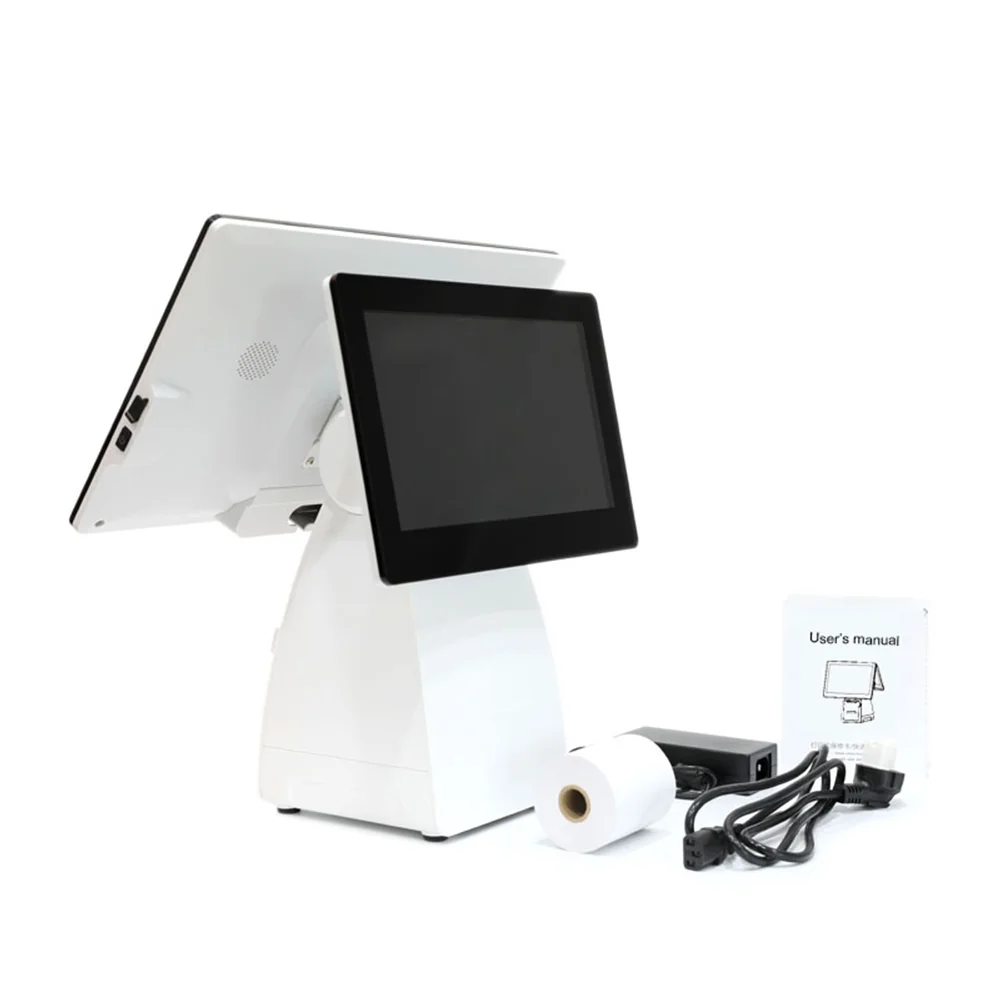
Pay attention to the screen size and stand as well. A fixed counter POS terminal and a handheld or tablet-style device solve different problems, and screen real estate affects how quickly staff can find items during a busy period.
An Android 13 terminal with a 15.6-inch touchscreen and optional 4G LTE, suited to touch-first retail and food-service checkout.
A Windows 10/11 terminal with an integrated 80mm receipt printer and five USB ports for a full counter setup.
Checkout is rarely a screen on its own. A typical counter connects a cash register drawer, a receipt printer, a customer display, and payment devices. The bill receipt printer is a POS peripheral: both platforms support ESC/POS printers and Barcode label printers, but the physical interface matters. Confirm whether the POS terminal offers USB, serial, Ethernet, or a dedicated cash-drawer port, and match it to your devices.
Android POS hardware usually has a lower purchase price. Windows POS hardware can cost more but may be the safer choice where legacy software, complex integrations, or heavy local data processing are involved. Look beyond the sticker price: setup time, maintenance, replacement units, and staff training all contribute to the total cost of ownership.
For chain stores, a standard hardware and operating-system image makes it easier to prepare spare units and reproduce settings. Record the approved configuration after testing so later batches match the sample. The Windows POS hardware range is one option when your POS software and peripherals are Windows-oriented; the Android POS terminals are the alternative for touch-first deployments.
There is no universal winner. The right POS terminal is the one that runs your POS software reliably with your peripherals and fits how you plan to deploy and support it.
It depends on your POS software first. Android-based or touch-first cloud applications suit an Android terminal; a Windows desktop application or one that needs legacy drivers suits a Windows POS terminal.
Yes. Both can drive an ESC/POS bill receipt printer and a cash drawer. Confirm the physical interface on the terminal, such as USB, serial, Ethernet, Bluetooth, Wi-Fi, or RJ12/RJ11, before ordering.
For a Windows POS terminal, usually not. Printers, customer displays, and drawers are typically platform-independent, but confirm your POS application has a driver for the operating system you choose. For an Android POS terminal, if you switch to peripherals from another brand, you may need SDK-based secondary development to get them working properly.