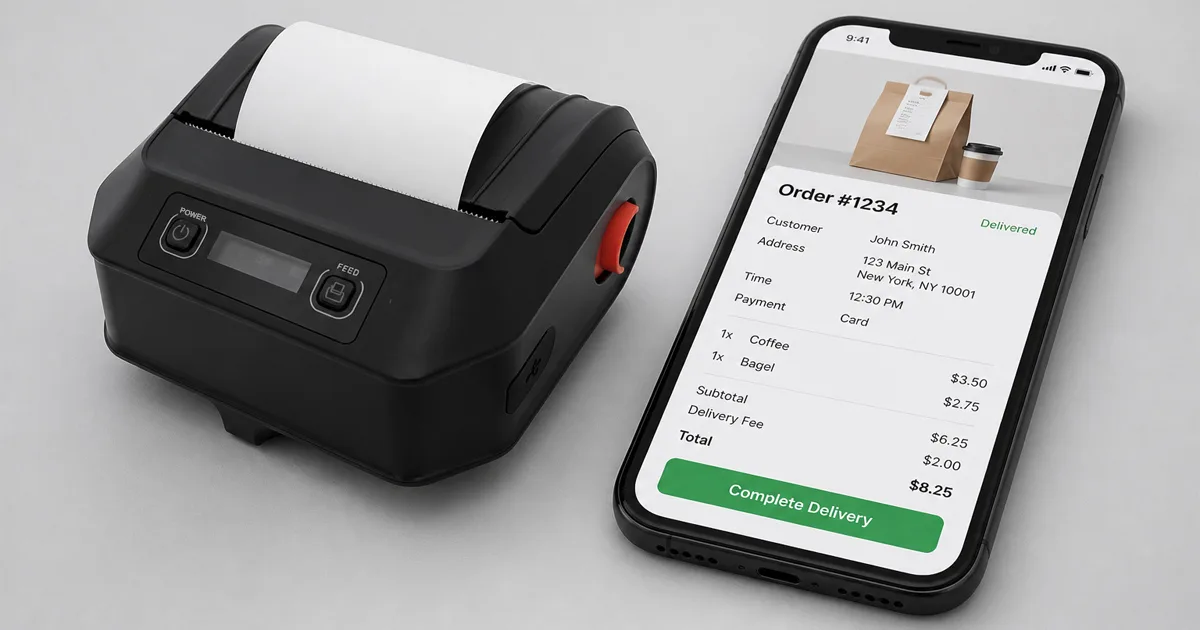
A portable thermal printer that connects over Bluetooth lets staff print receipts, tickets, and labels directly from a phone or tablet, without a wired connection to a PC. This setup is common in food trucks, pop-up shops, field service, and anywhere a counter PC is impractical. This guide walks through pairing such a printer with Android and iOS, printing from a POS or label app, and fixing the connection problems that come up most often.
Most Bluetooth thermal printers pair through the manufacturer's mobile app rather than the phone's system Bluetooth menu. Before you start, charge the printer, load the correct paper roll (commonly 58 mm or 80 mm wide), and install the app named for your printer model from the App Store or Google Play. Keep the printer within a few meters of the phone during setup. Bluetooth Classic reaches roughly 10 meters in open space, and walls and other wireless devices reduce that range.
Open Settings and turn on Bluetooth. Power on the printer and put it into pairing mode (usually by holding the power button until the Bluetooth indicator flashes). In the printer's mobile app, open the connection or device list screen and tap the printer when it appears. Some models ask for a PIN such as 0000 or 1234; this is printed in the manual. Once the app shows a connected state, you can print a test page from inside the app.
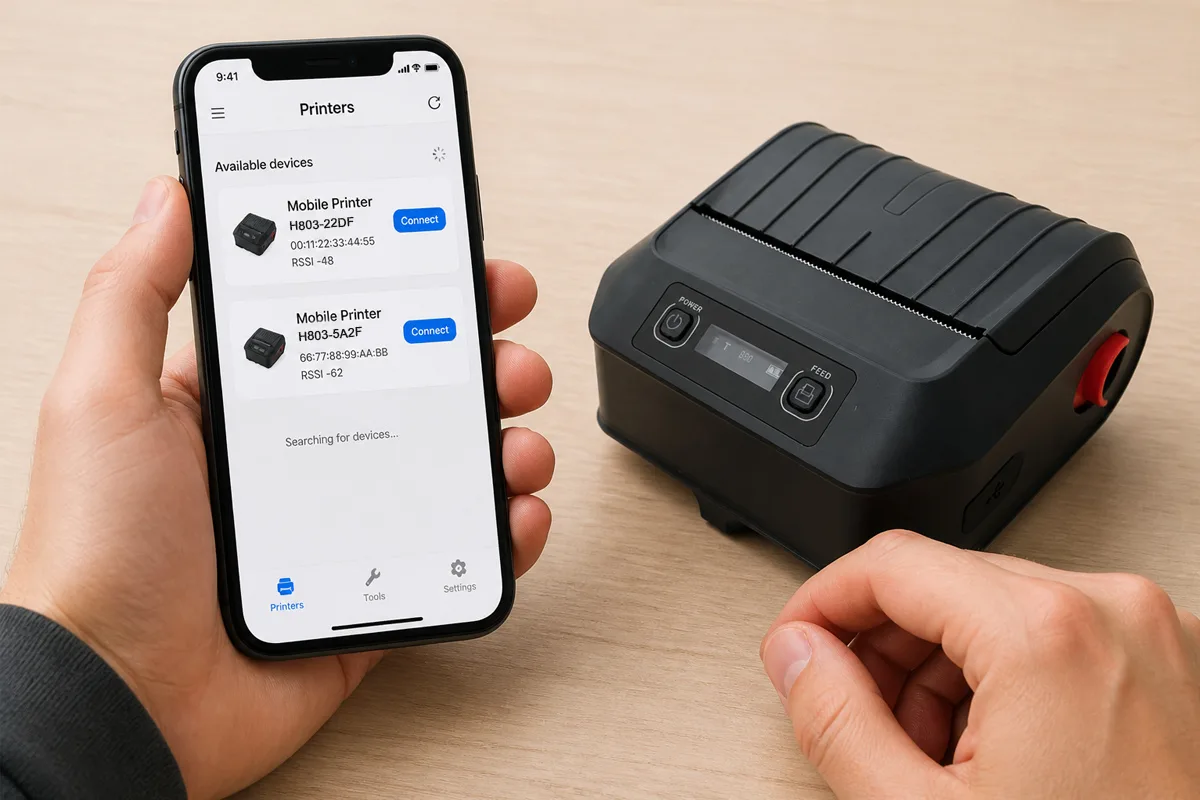
iOS behaves similarly, but many mini and portable printers do not connect from the system Bluetooth screen at all. You must pair from inside the printer app. Enable Bluetooth in Settings, open the app, allow Bluetooth permissions when prompted, and select the printer from the in-app device list. If the printer never appears, it is often already linked to another phone. Disconnect it there first, or restart both devices and try again.
After pairing, the printer works with any app that supports Bluetooth printing. A handheld POS terminal or a tablet running point-of-sale software can send orders straight to the printer. For labels, use the printer's label app or a third-party design tool that outputs to the paired device. The full printer series covers desktop, portable, and intelligent models if you later need higher volume or larger media.
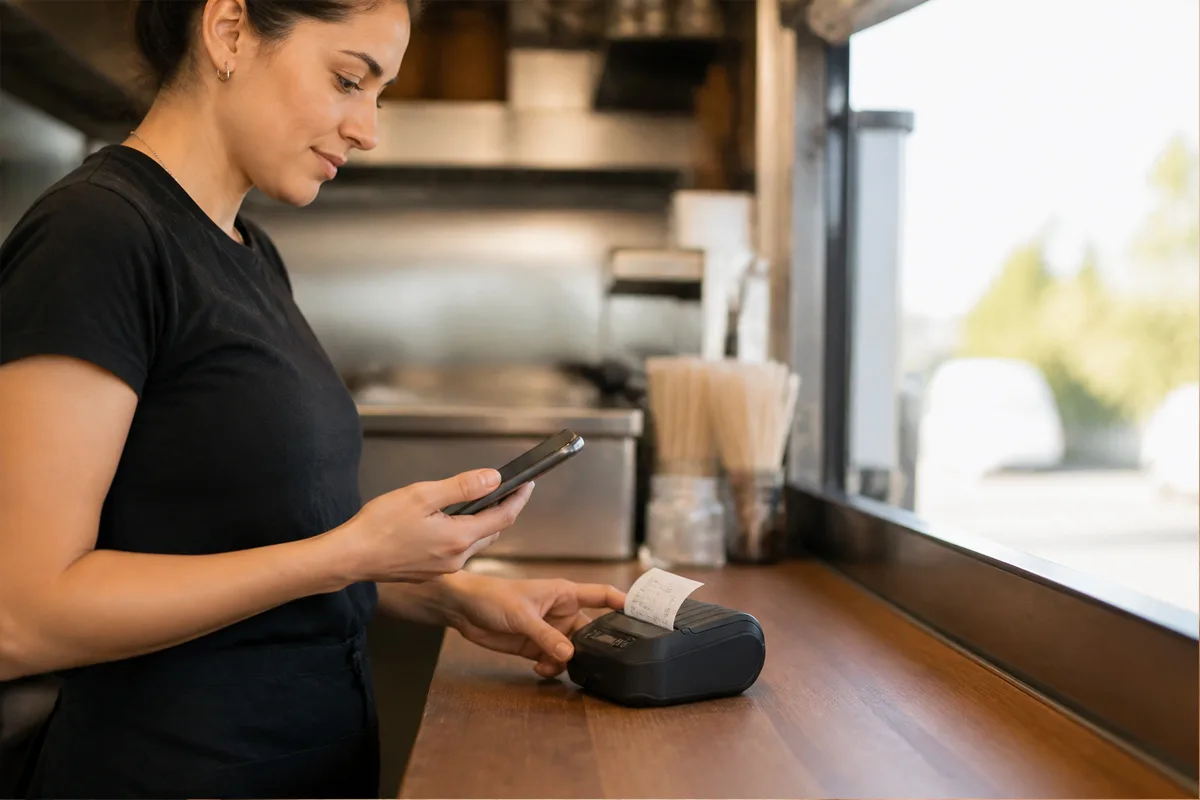
A pocket-size Bluetooth thermal printer for receipts and labels on the move. Pair it with a phone or tablet for mobile ordering, deliveries, and field service.
Most failures are simple. If the printer will not appear, make sure it is not already paired to another device and that it is in pairing mode. If it pairs but will not print, reopen the app and reconnect inside it. A system-level Bluetooth link does not always mean the app can print. For weak or dropping connections, move the devices closer, turn off other active Bluetooth accessories nearby, and update both the app and the printer firmware where an update is offered.
Bluetooth suits one-to-one mobile printing from a single phone or tablet. Wi-Fi printing is better when several devices on the same network need to reach one printer, or when printing from a backend system. If your workflow is mostly counter or back-office printing from shared systems, review the Wi-Fi setup approach as well.
Often no. Many portable and mini thermal printers pair only from inside the manufacturer's app. Enable Bluetooth in the system settings, then complete the pairing from the app's device list.
A system Bluetooth link and an app print session are not the same. Open the printer app, reconnect the device there, and confirm the correct printer is selected before sending the job.
Usually one active Bluetooth connection at a time. For several devices to print to the same unit, a Wi-Fi or networked printer is the better fit.